Overview
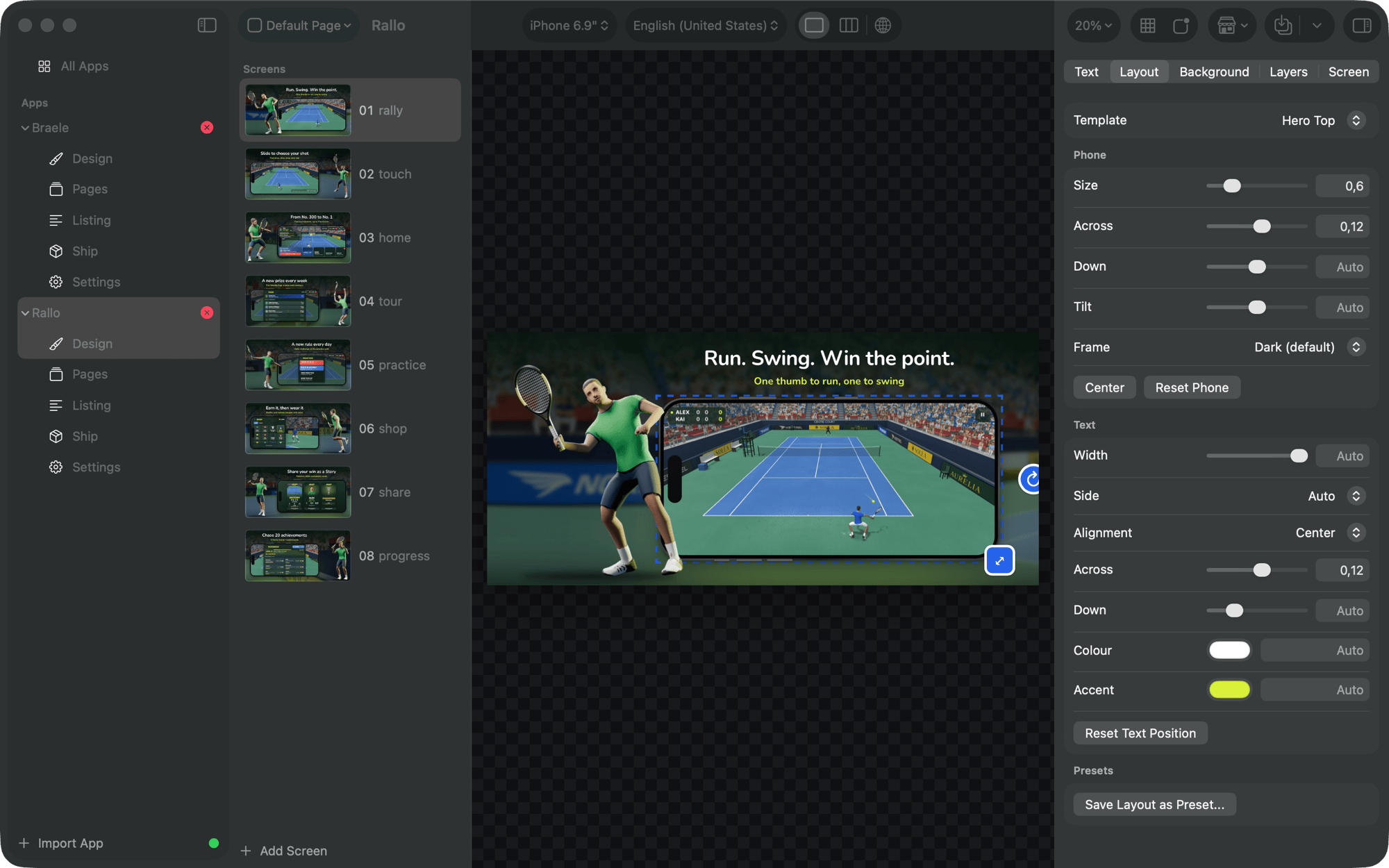
The page's screens, a canvas that is the exact render the store gets, and an inspector for the screen you picked.
Each screen is a template filled with copy per language, a raw capture from your app, and whatever you put on it. Design (Command-1) has three parts:
- Screens, on the left: the page's screens in order. See Screens and order.
- The canvas, in the middle: the screen as the store gets it, rendered by the same code that writes the files. See The canvas.
- The inspector, on the right, in tabs: Text, Layout, Background, Layers and Screen.
The toolbar
The toolbar picks what the canvas shows:
- Page: the default product page, or a custom product page or test. A page shows its own screens in its own order.
- Device: every device the app renders for, from iPhone 6.9" to the Google Play feature graphic.
- Language: every language of the app. Command-[ and Command-] step through them.
- View: one screen, the strip, or every language. See Views.
- Zoom: Command-= in, Command-- out, Command-0 actual size, Command-9 fits.
App Store look shows the screens as the store does, on a dark page with rounded corners. Guides (Option-Command-G) draws the safe padding, centres and thirds and, for header images, the two crops App Store Connect makes.
The status line
The foot of the canvas runs the checks a build runs, as you type: text that overflows at its smallest allowed size, text over the device, missing glyphs, missing copy, a missing capture.
Saving and undo
Edits save themselves a moment after you stop, into the app's own files. Command-Z undoes them, one step per change you made, not per keystroke. Unsaved edits are written before the engine restarts or the app quits.
Go anywhere
Command-K opens a palette that jumps to any app, section, screen, page, language or device, or runs an action (generate, switch the view, open the log), by typing part of its name.