Import an app
Point the tool at an app's folder; it proposes a setup from what the app already says about itself.
In the Mac app, choose Import App (Command-O, or + in the sidebar) and pick the app's folder. The tool reads what the app already says about itself and proposes a setup you can change before anything is written:
- Name and bundle id from Expo's
app.json, a Capacitor config, or the Xcode project. - Languages from
fastlane/metadata, or from the app's own translations. - Devices: landscape sets for an app that only runs sideways, iPad sets only if the app
runs on iPad, and Google Play sets when
fastlane/metadata/androidexists.
What importing writes
store-shots.config.json: devices, languages, brand colours and fonts.store/: the manifest of screens, copy per language, and folders for captures and art.
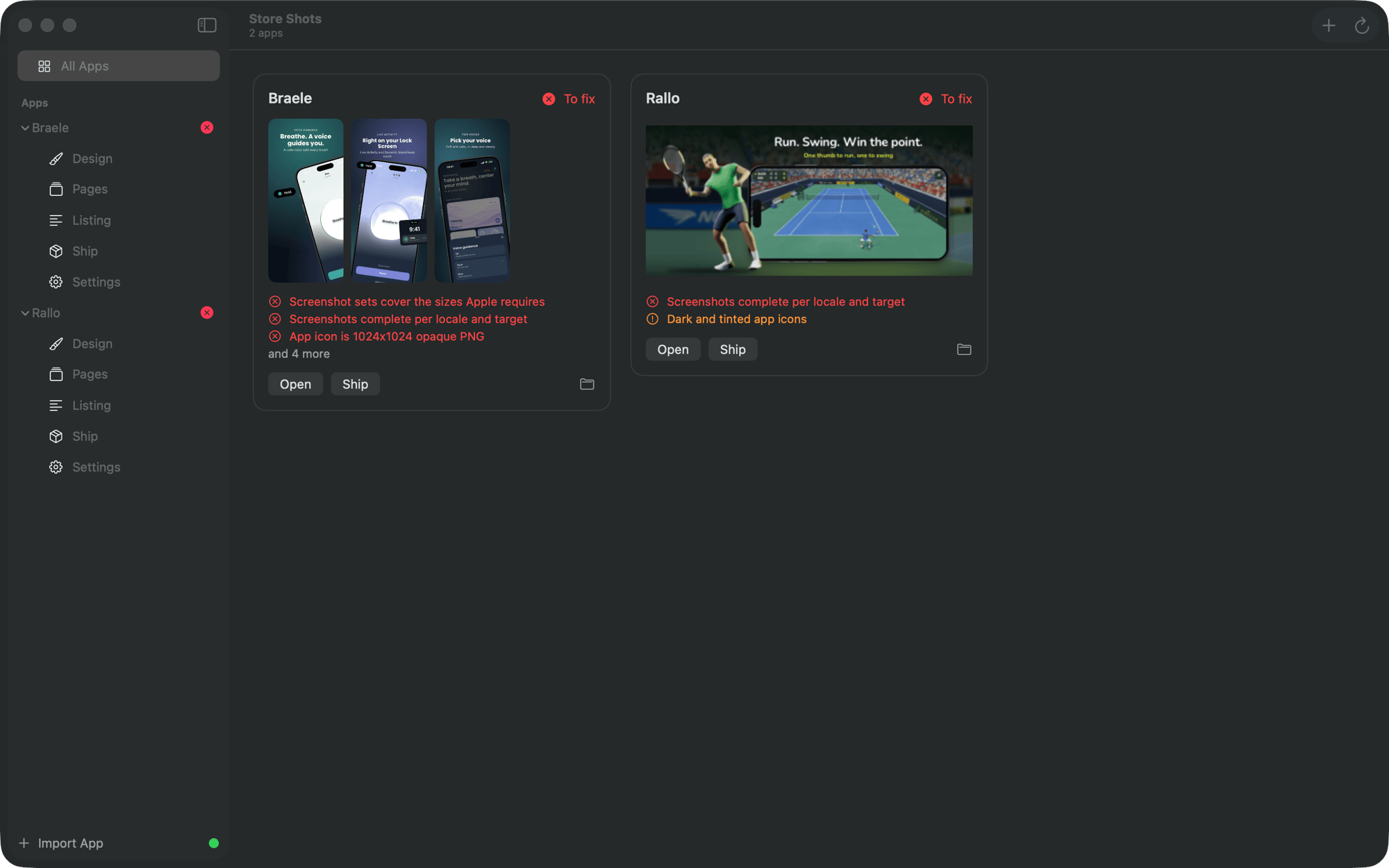
It never overwrites a file that is already there. The app then shows in the sidebar, and in All Apps with its first screens and what is left to fix.
The list of apps you added is kept outside any app, in ~/.store-shots/projects.json. Removing
an app from the list never touches its files.
From the command line
Inside the app's folder:
store-shots init                  # scaffold store/ and the config, add the app to your list
store-shots init --landscape      # or --portrait, to choose the sets yourself
An app that already has a store-shots.config.json (cloned on another machine, say) only
needs adding:
store-shots add path/to/app
store-shots projects              # what you have added
store-shots remove <name>         # take one off the list
store-shots prune                 # drop entries whose folder has gone
--project takes an app folder or its config. Without it, every command looks upward from the
current folder, so inside an app you can leave it off.