Themes
A finished look for every screen, drawn in your app's own colour, picked when you import or any time after.
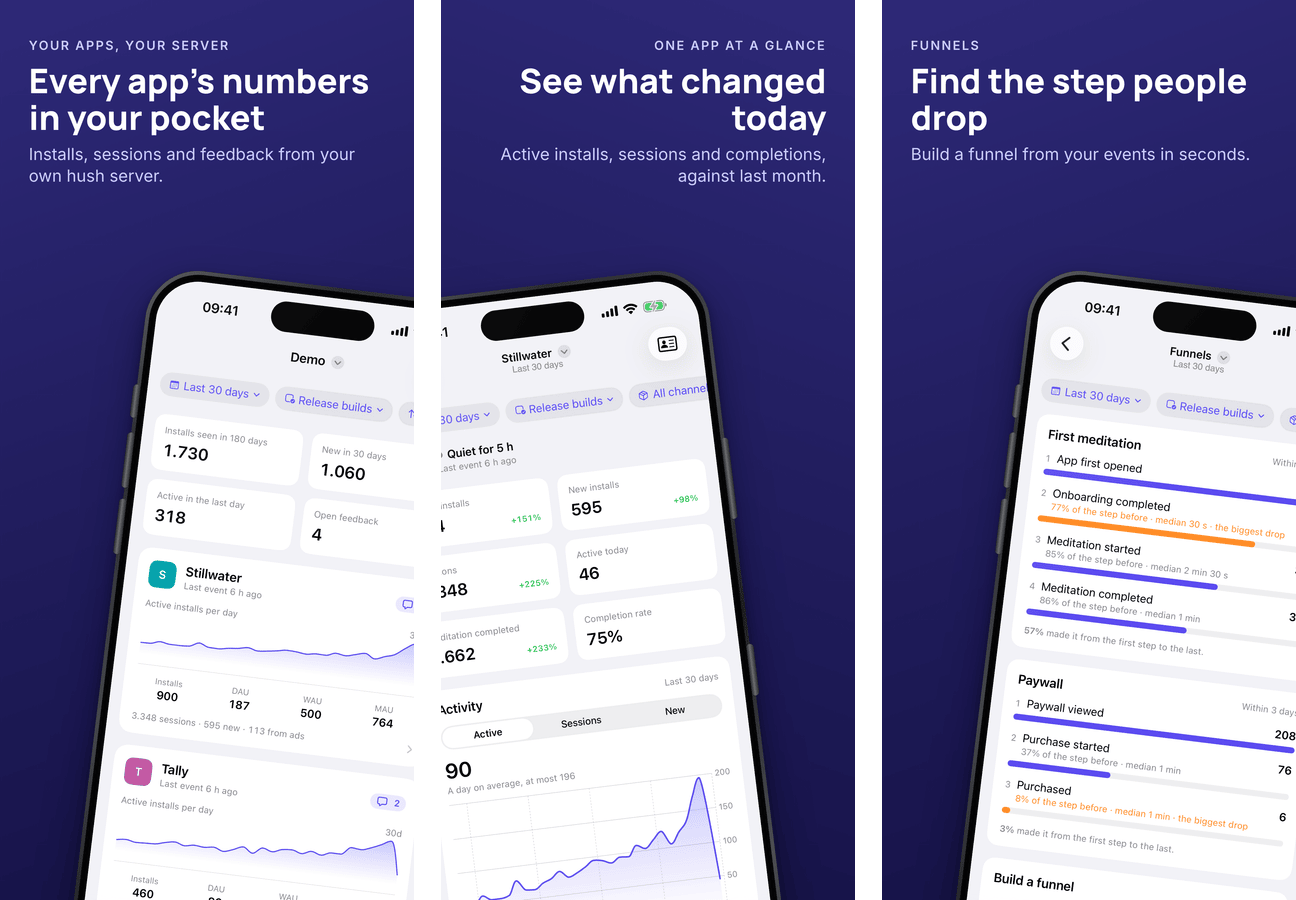
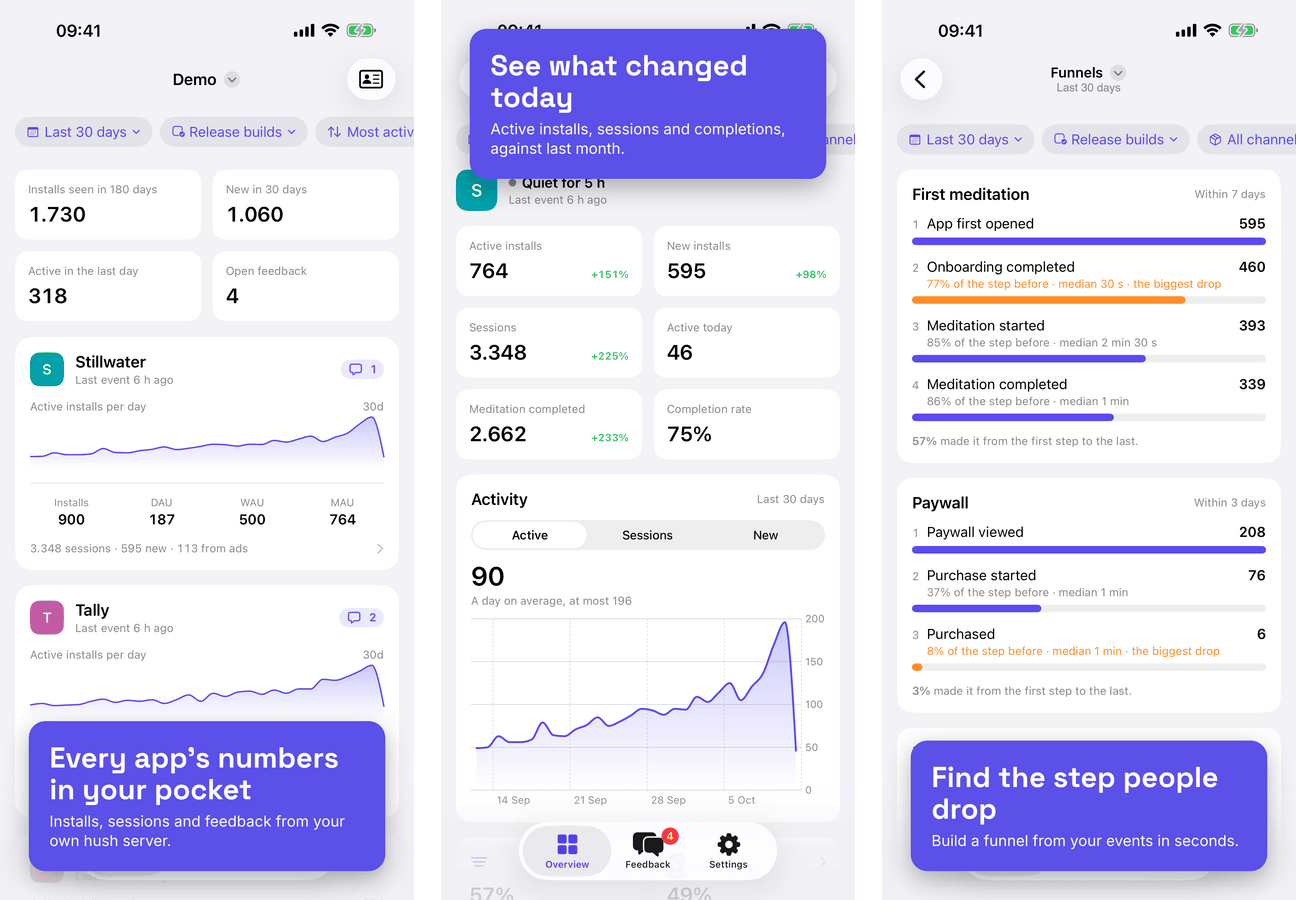
A theme makes the choices that turn a page of screenshots into a listing: fonts, colours, the background, where the phone sits on each screen, and the frame. There are six, and every one is drawn in one colour, your app's.
| Theme | Look | Headlines |
|---|---|---|
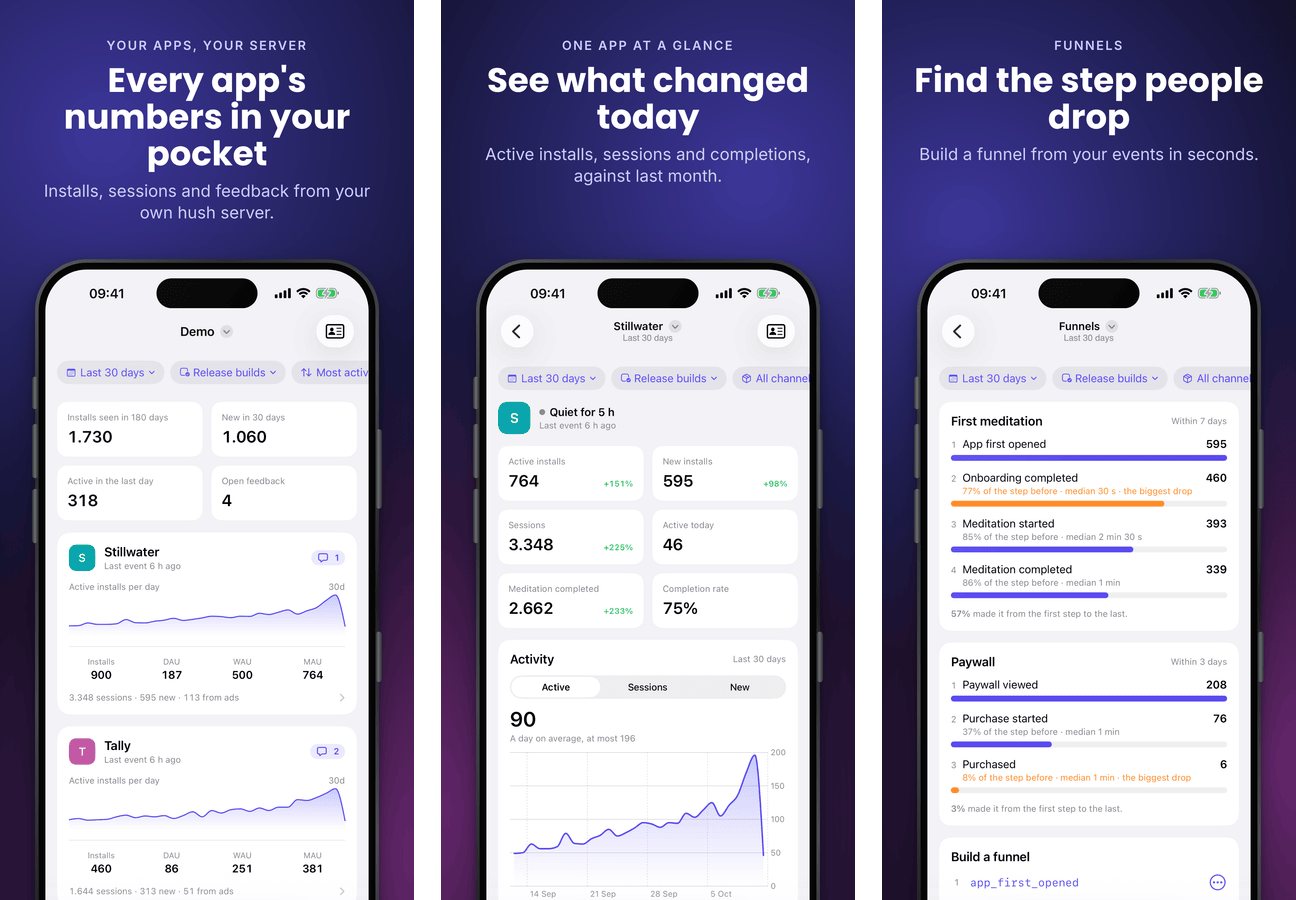
| Aurora | Near-black, two soft glows in your colour that move from screen to screen | Poppins |
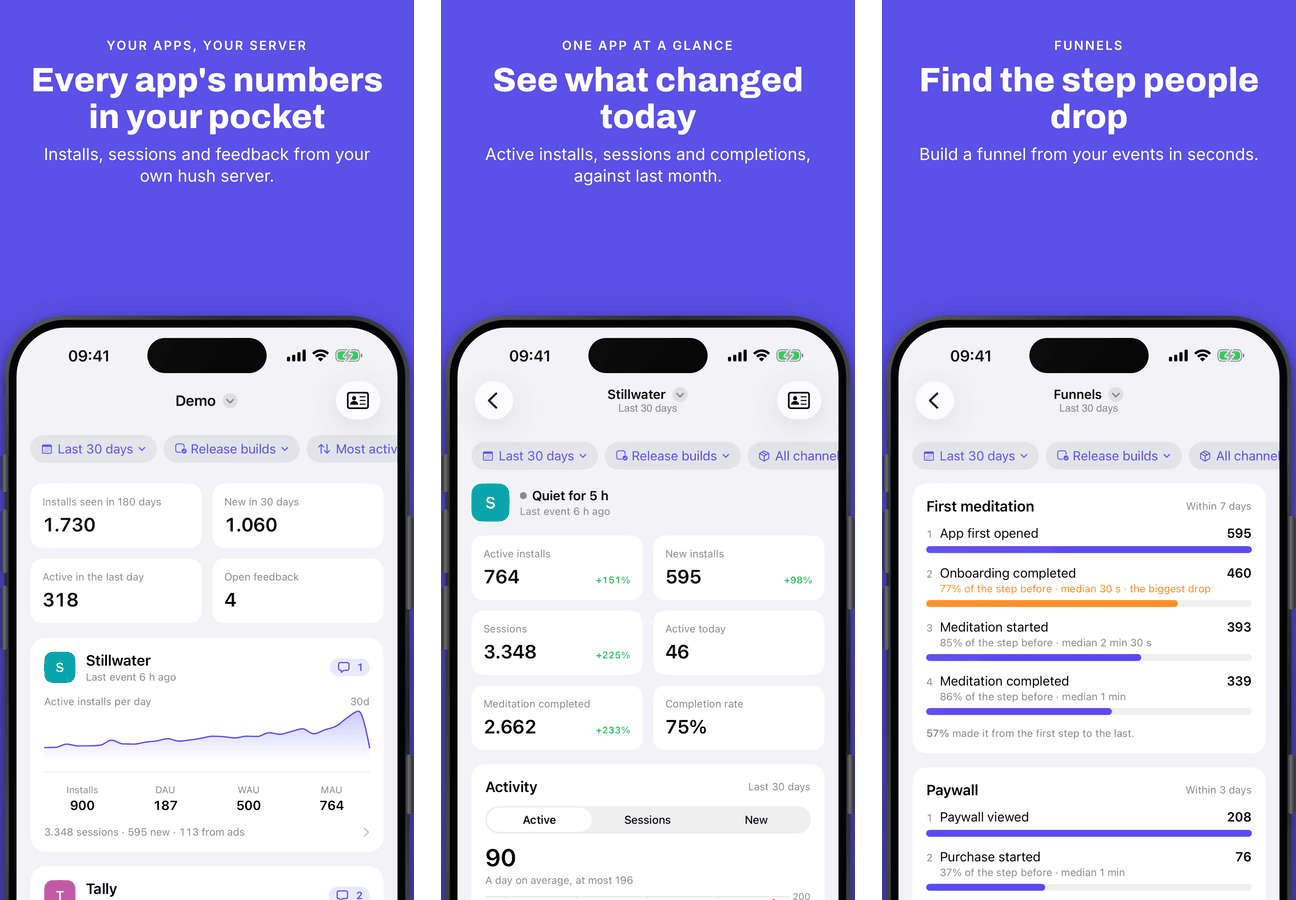
| Bold | Your colour as a solid fill, a heavy headline, a big phone running off the bottom | Archivo |
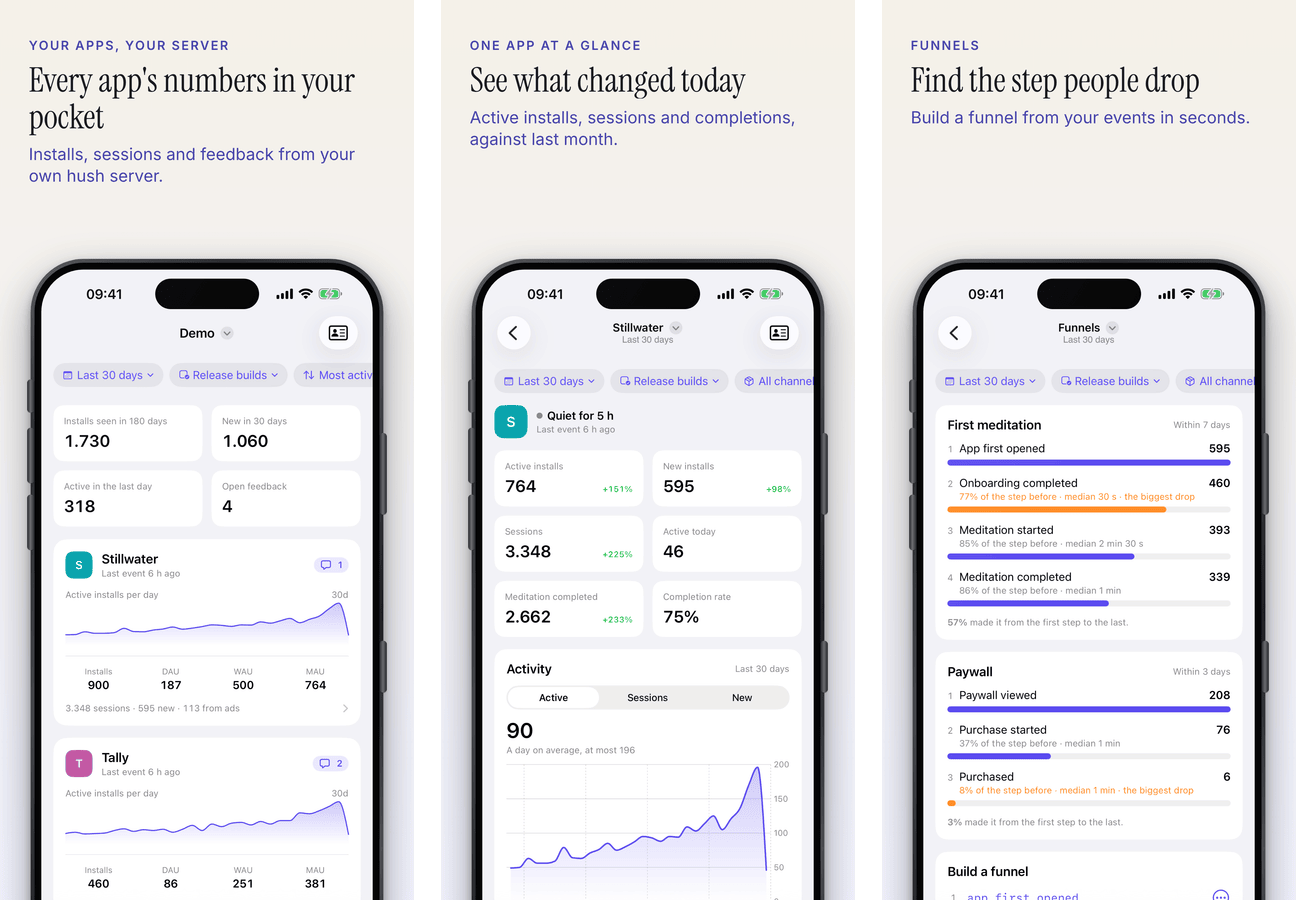
| Paper | Warm off-white, dark serif headlines, your colour in the small type | Instrument Serif |
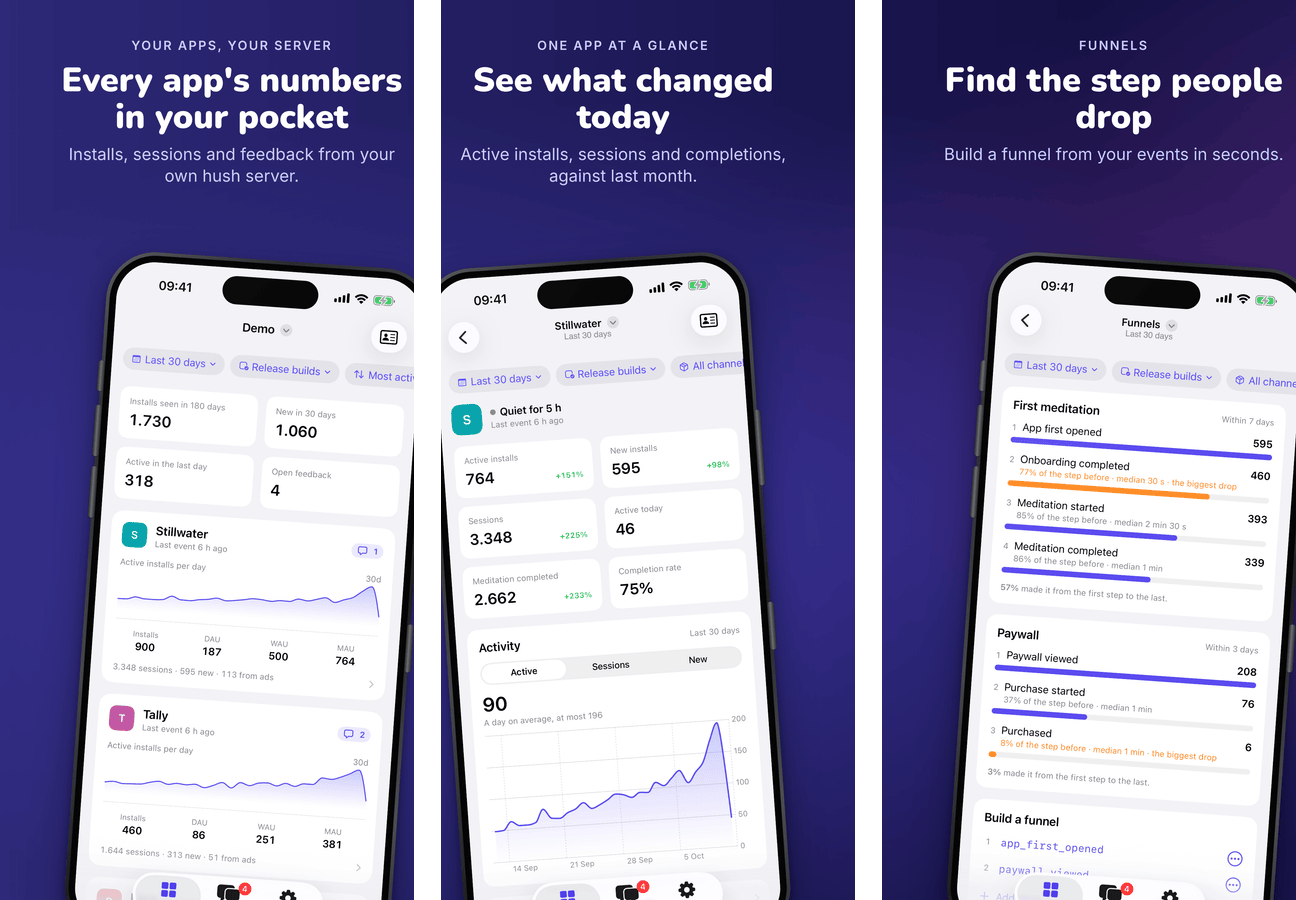
| Swing | Phones that swing left and right with a slight tilt, on one gradient across the strip | Nunito |
| Split | Text on one side, a big phone off the opposite corner, alternating | Manrope |
| Card | The capture fills the screen, the copy on a card in your colour; for games and photos | Space Grotesk |
The fonts ship with the tool, so a theme works offline and renders the same everywhere. Body text keeps your app's font.
Each one below is hush's iOS app, in hush's own purple: the same captures and copy, six looks.
Aurora
Bold
Paper
Swing
Split
Card
Your app's colour
The colour is found in the app, in this order:
- what the app states: Expo's
primaryColor, the splash or Android adaptive icon background, or the asset catalog'sAccentColor; - the most vivid colour in the app icon, so a small bright detail on a dark icon still counts;
- a neutral blue.
The picker shows where the colour came from, and you can change it. From that one colour each theme works out its tones (a dark base, a light tint, glows, text with enough contrast), so a yellow and a blue both come out right.
Starting an app in a theme
Import App has a Look step: Plain (one screen, the template's defaults) or one of the
themes, each previewed in your colour. A theme starts the app with five screens, hero and
feature-1 to feature-4:
- the hero's headline is the app's store subtitle, when
fastlane/metadatahas one; - the rest of the copy is prompts to replace. The status line flags them, and the readiness checks fail until every one is gone, so a prompt cannot ship;
- until you add captures, each phone shows a sketch of an app screen in your colour.
store-shots init --theme paper            # the colour from the app
store-shots init --theme bold --accent "#E5484D"
Restyling an app you have
Screen > Theme... (or Command-K, then Theme) previews every theme with your app's own captures and copy. Apply restyles every screen, the brand colours and the headline font. Command-Z puts the app back exactly as it was.
A theme never touches copy, captures, layers, screen ids or their order, and keeps an official device frame you picked. Screens made only for the header, search or event pictures keep their layout and take the theme's colours.
store-shots theme list
store-shots theme apply swing --dry-run   # what would change
store-shots theme apply swing
After a theme
A theme writes ordinary values: the brand in store-shots.config.json and each screen's
template and layout in store/manifest.json. Everything it set can be changed with the usual
controls, and nothing in the app depends on the theme staying as it is.